Create Task Role for ECS Exec
Mục lục
Create the Policy
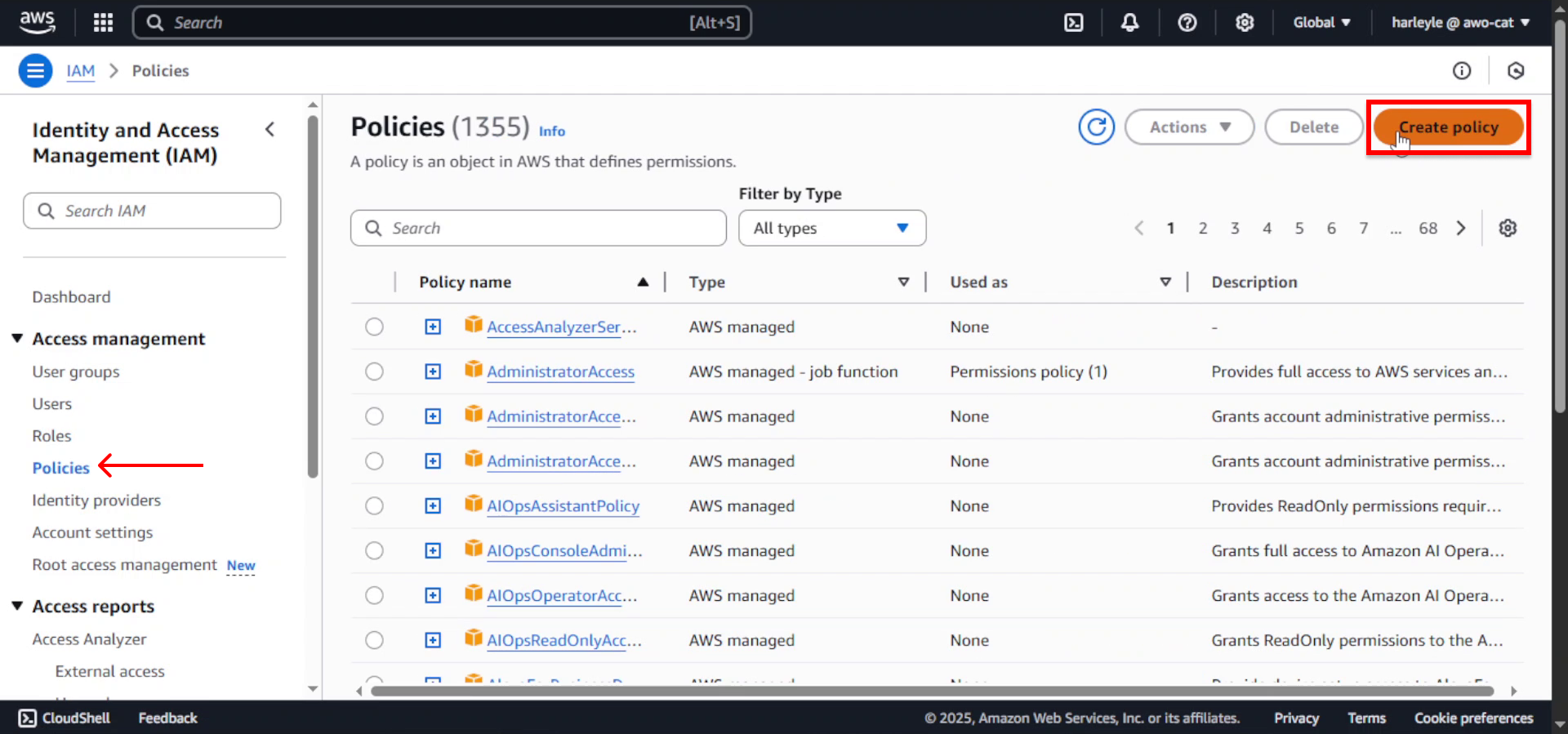
1. Navigate to the IAM console. In the left navigation pane, select Policies, then click Create policy.
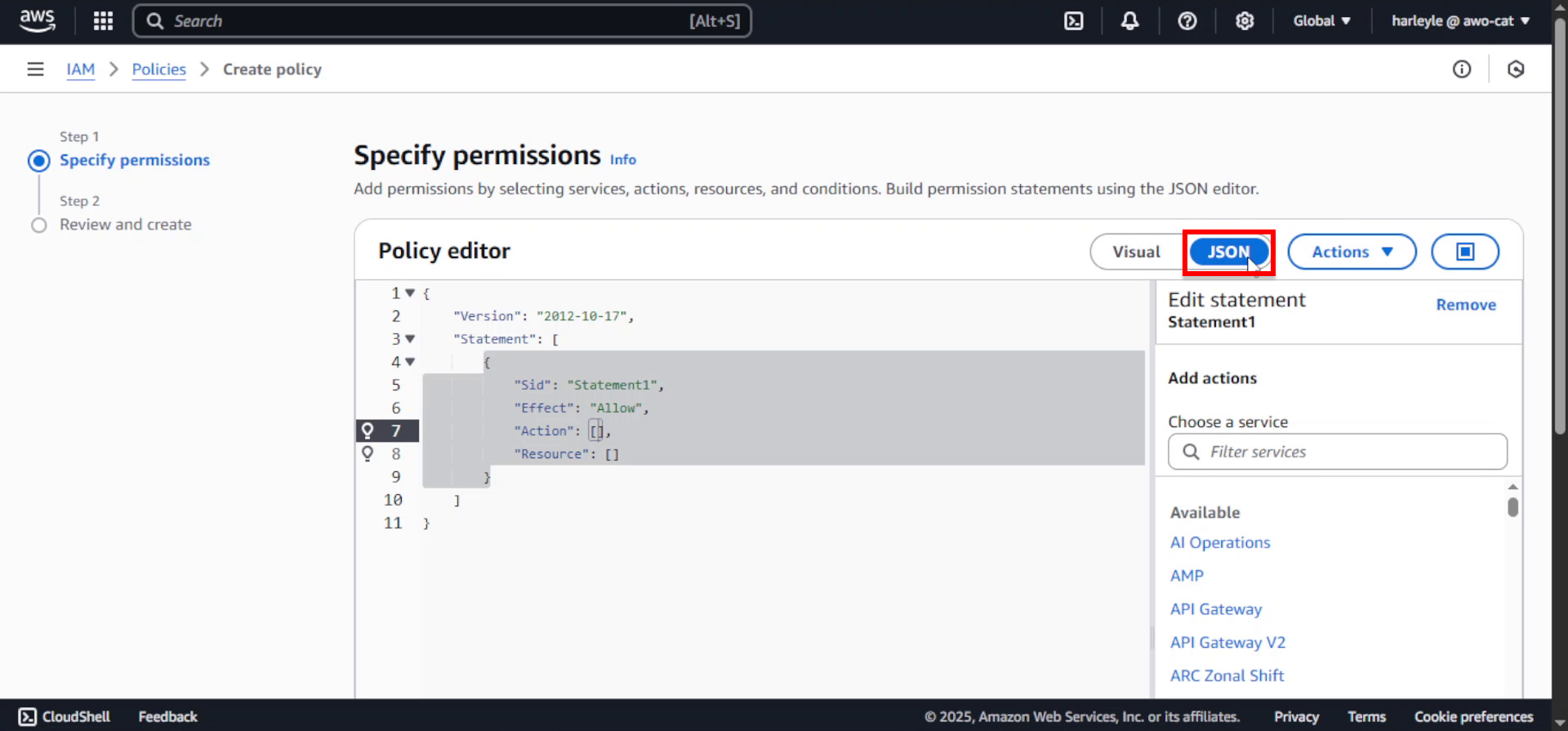
2. In the policy editor, select the JSON tab.
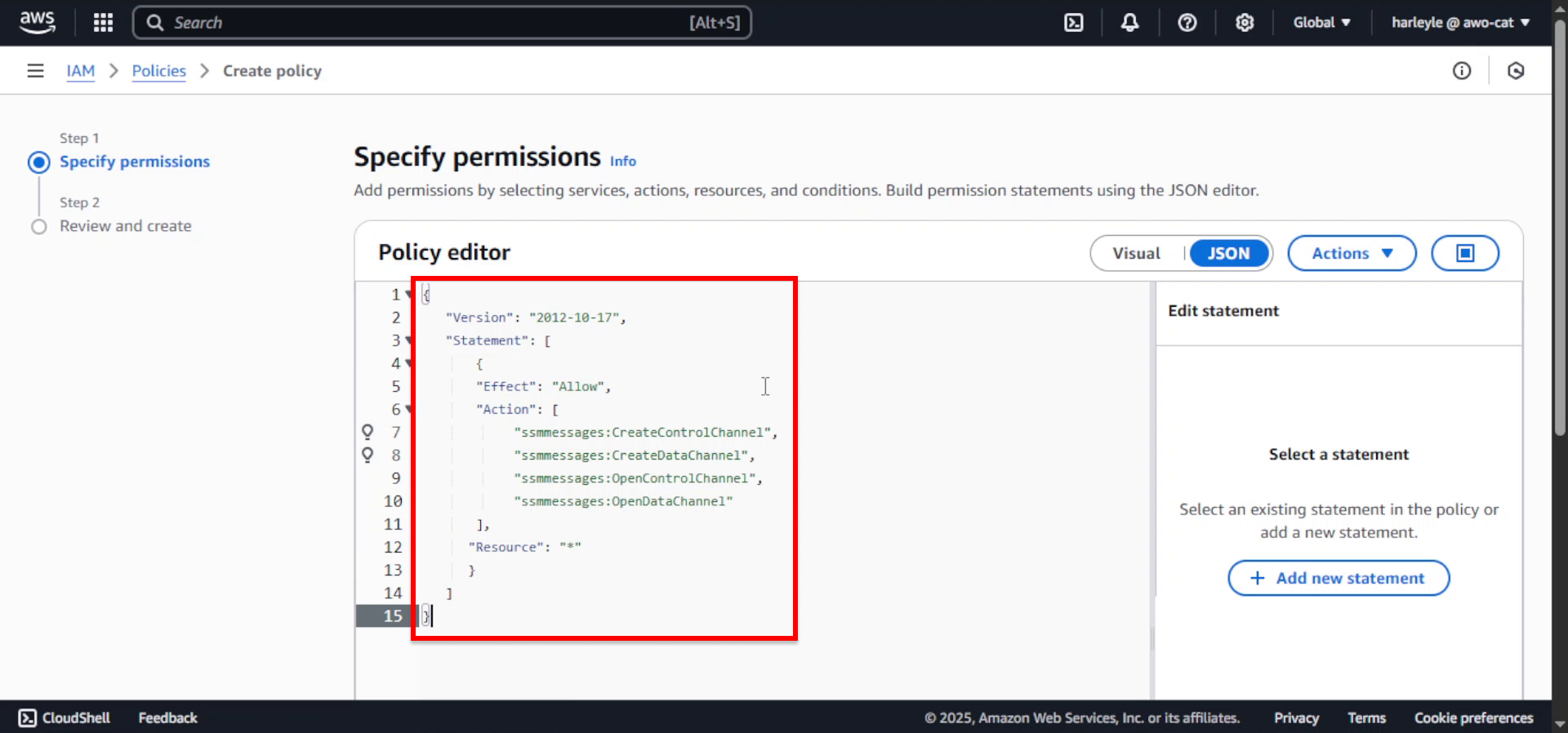
3. Clear the existing content in the Policy editor and paste the following JSON policy document:
{
    "Version": "2012-10-17",
    "Statement": [
        {
            "Effect": "Allow",
            "Action": [
                "ssmmessages:CreateControlChannel",
                "ssmmessages:CreateDataChannel",
                "ssmmessages:OpenControlChannel",
                "ssmmessages:OpenDataChannel"
            ],
            "Resource": "*"
        }
    ]
}
This policy grants the necessary permissions for ECS Exec to establish secure shell sessions with containers.
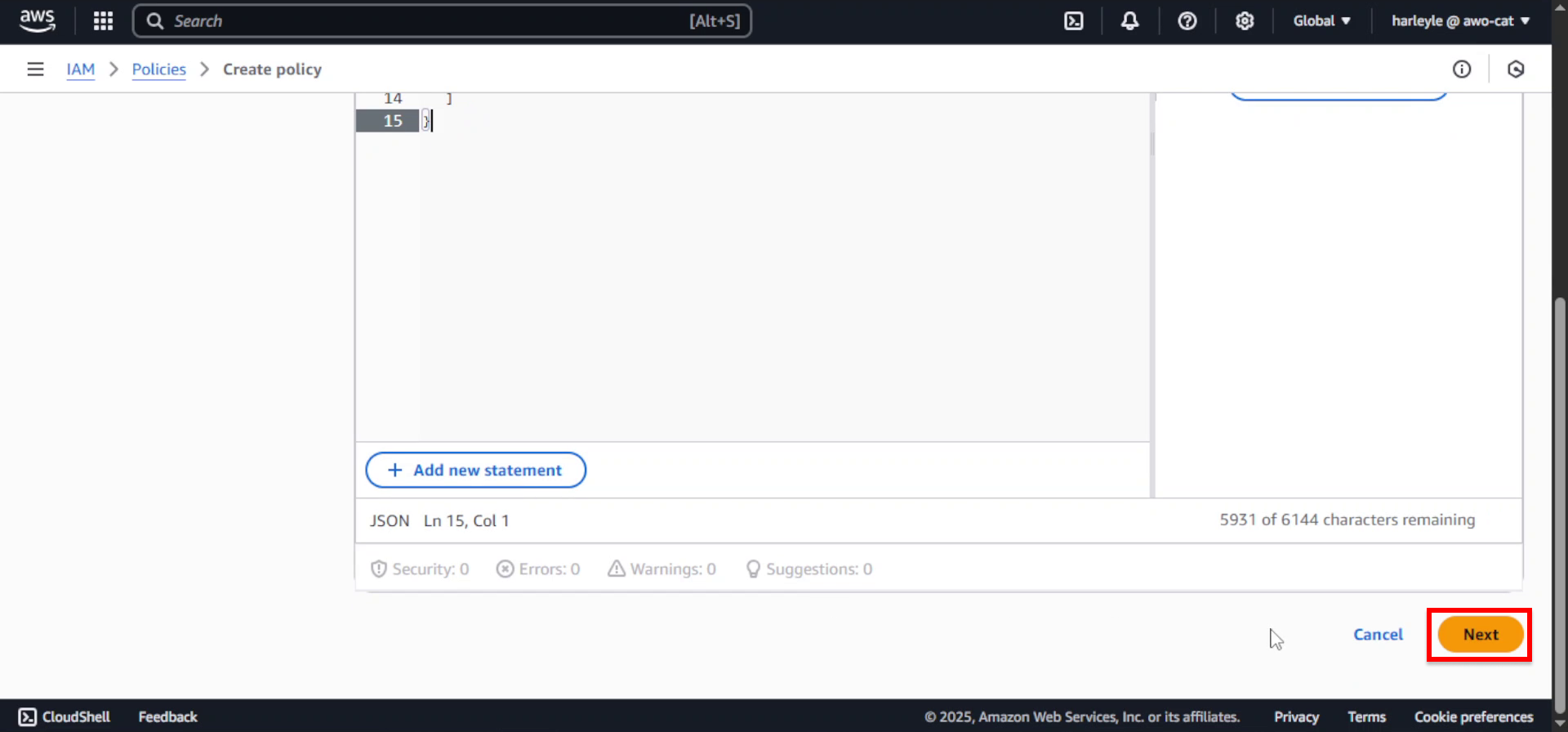
4. Click Next.
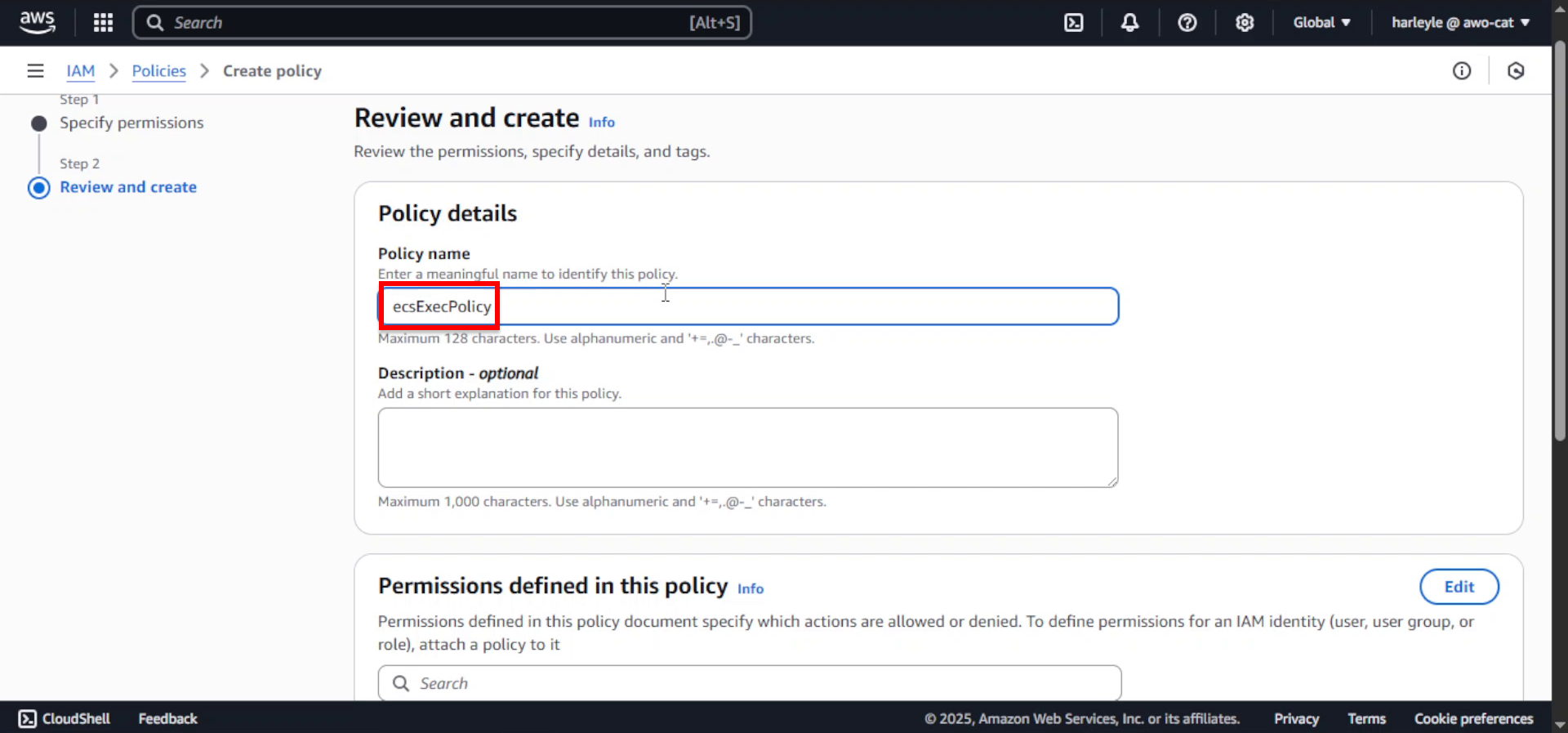
5. In the Policy details section:
- Policy name: Enter
ecsExecPolicy
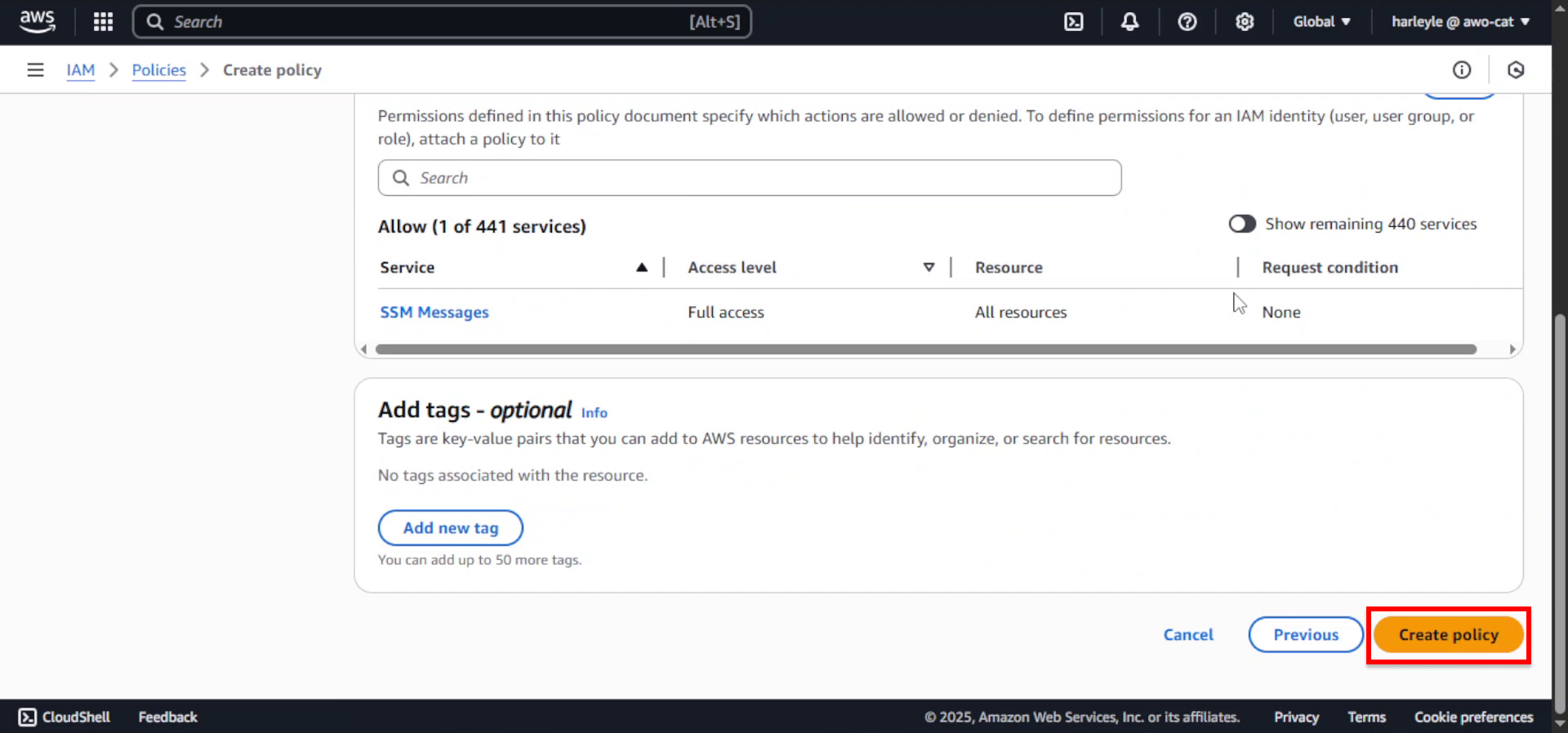
6. Review the policy configuration and click Create policy.
Creating The Task Role
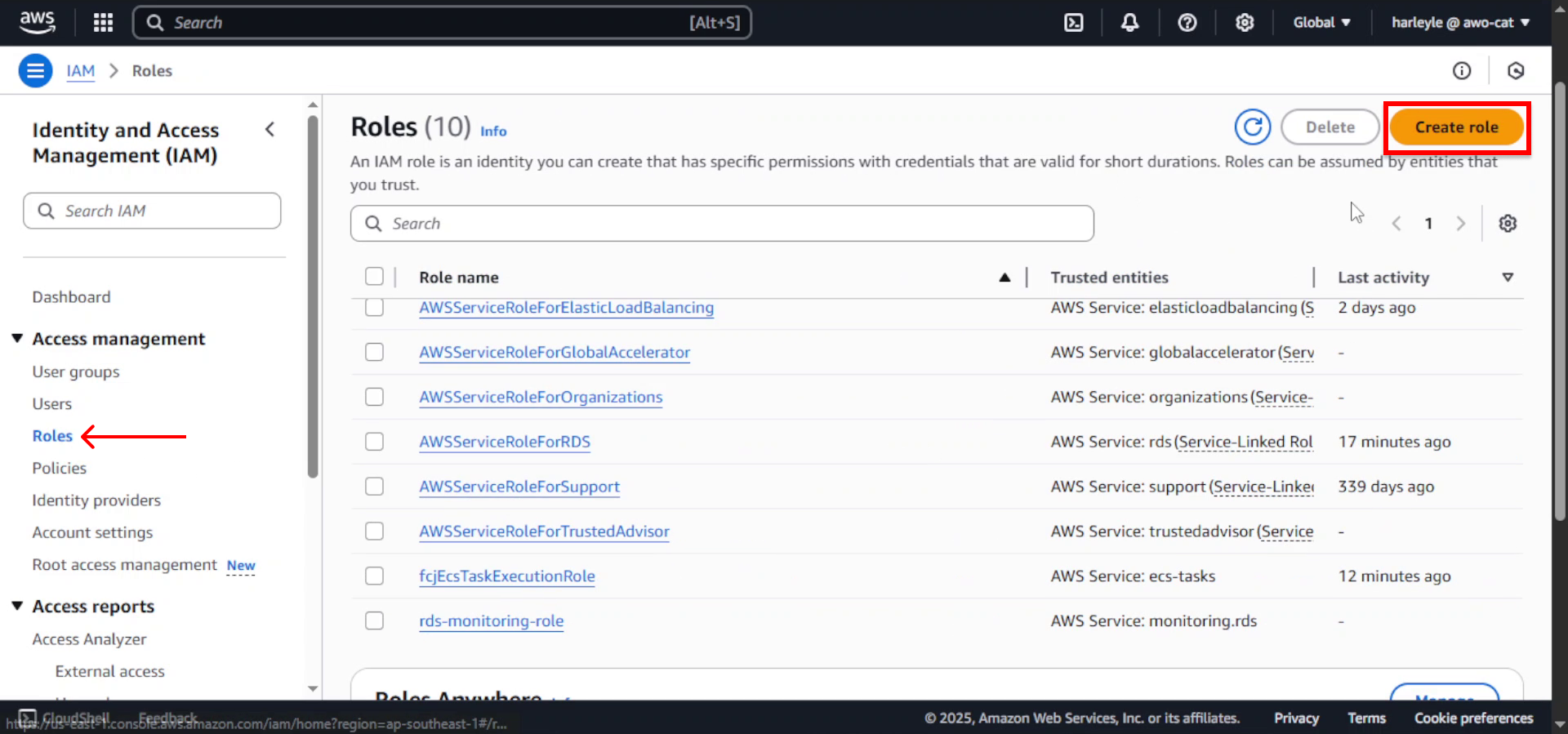
1. In the IAM console left navigation pane, select Roles, then click Create role.
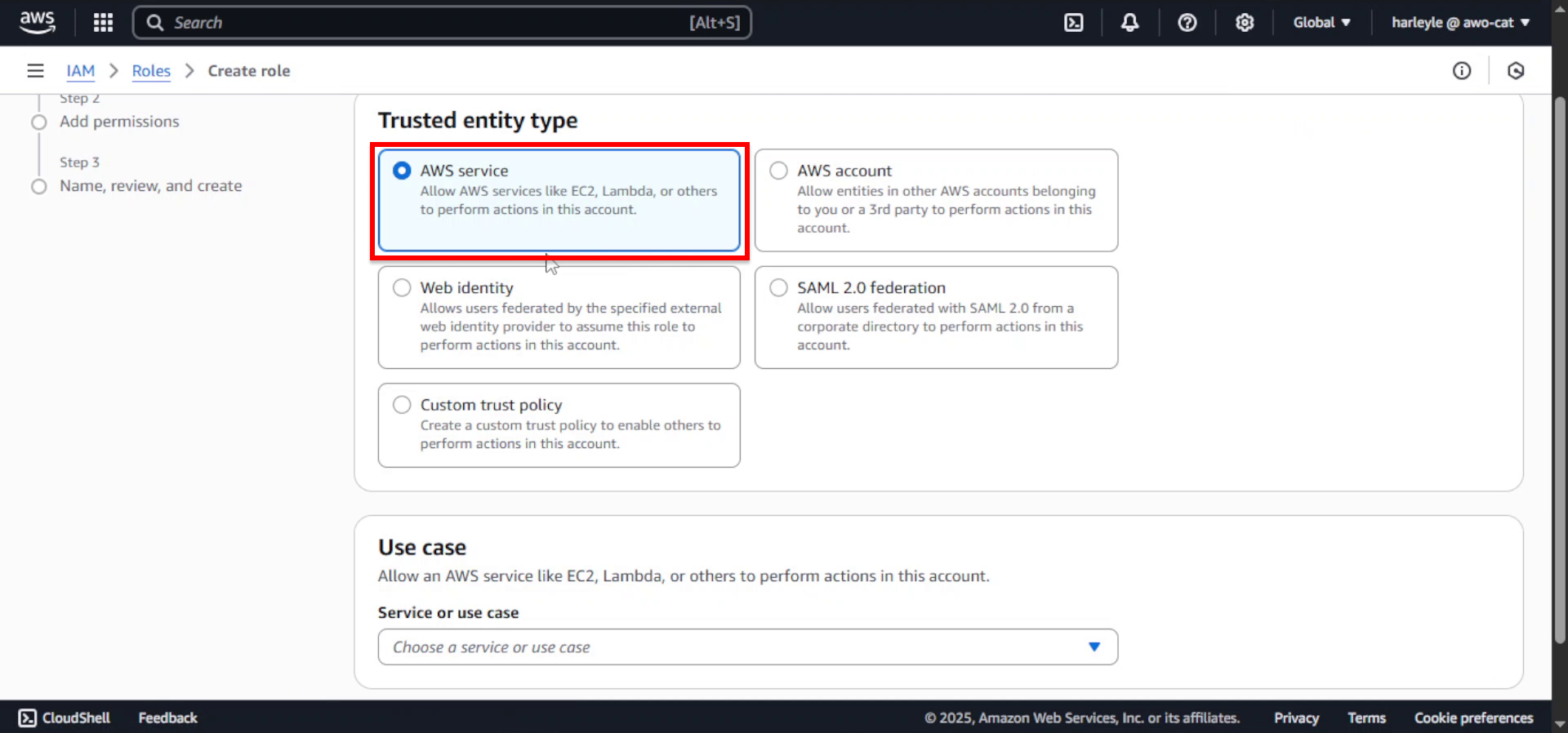
2. For Trusted entity type, select AWS service.
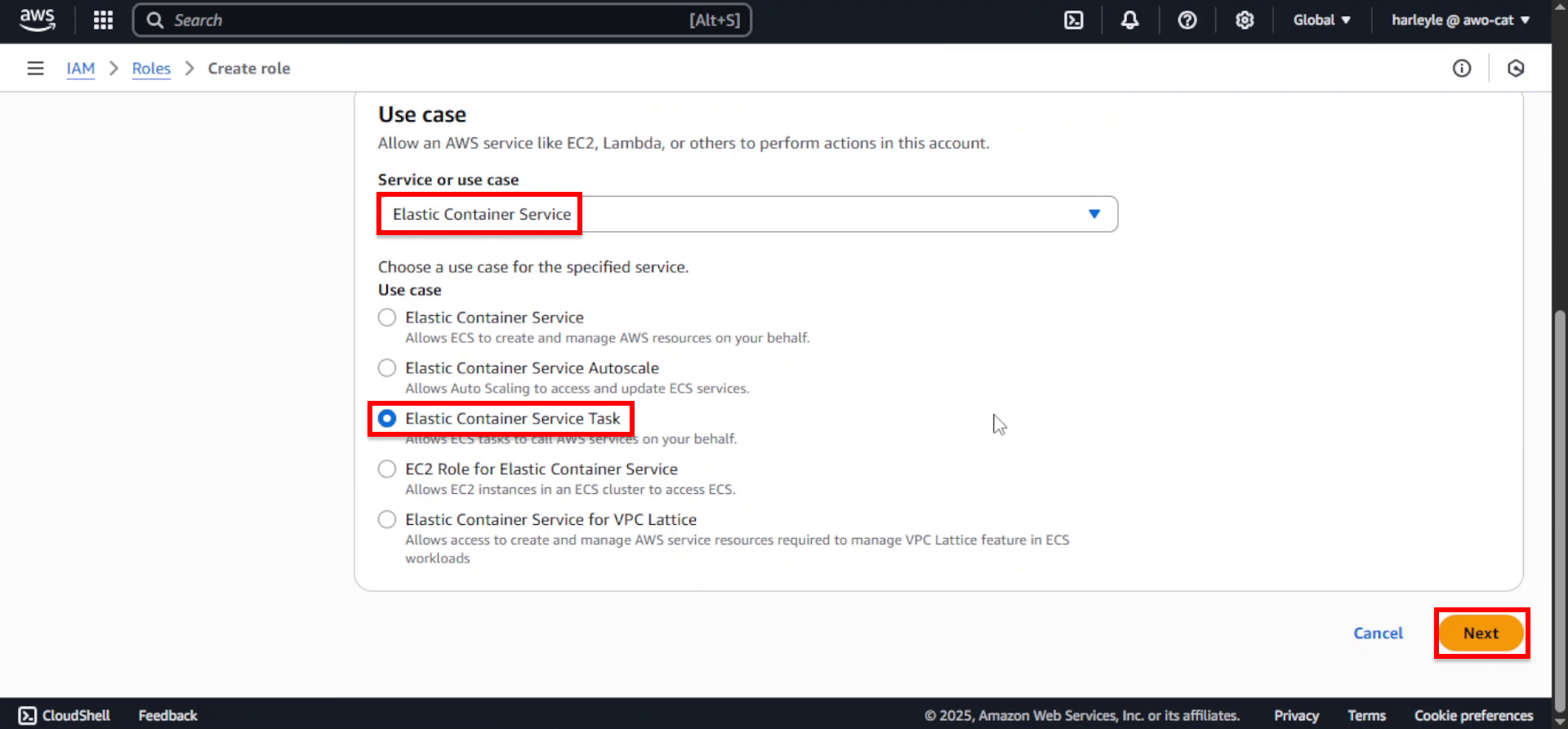
3. Configure the service and use case:
- Service or use case: Select Elastic Container Service
- Use case: Select Elastic Container Service Task
- Click Next
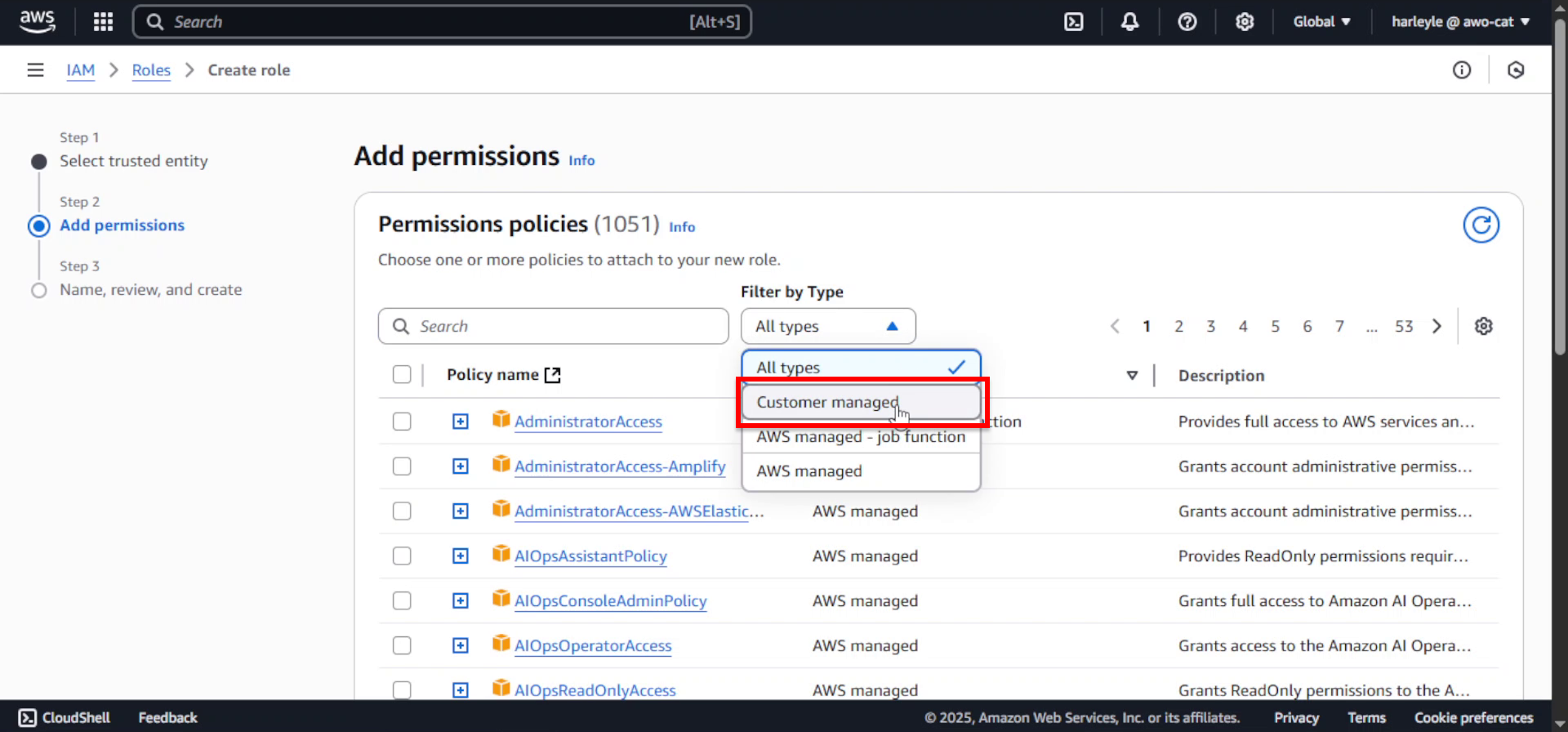
4. In the Add permissions section, set Filter by Type to Customer managed to show only your created policies.
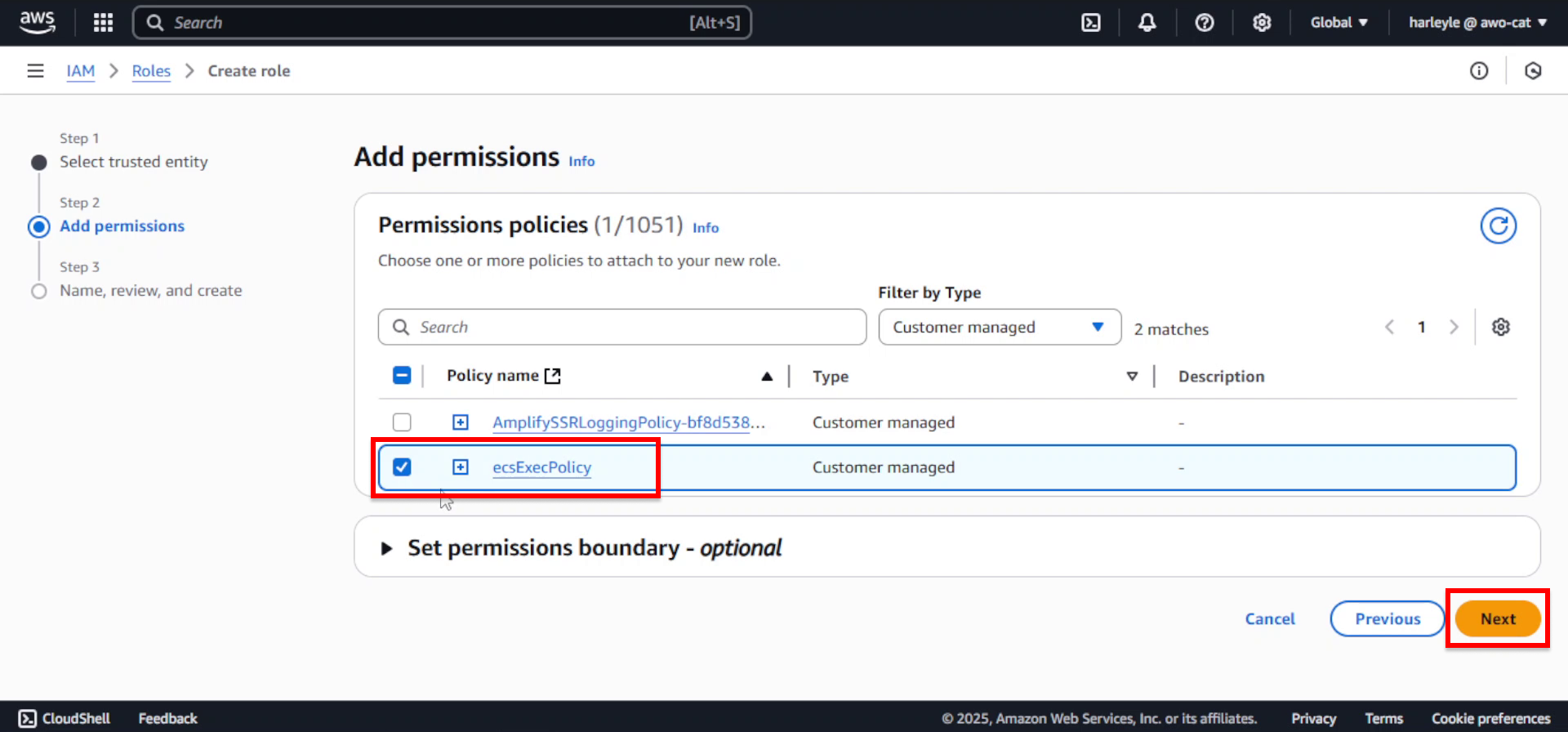
5. Search for and select the ecsExecPolicy you created, then click Next.
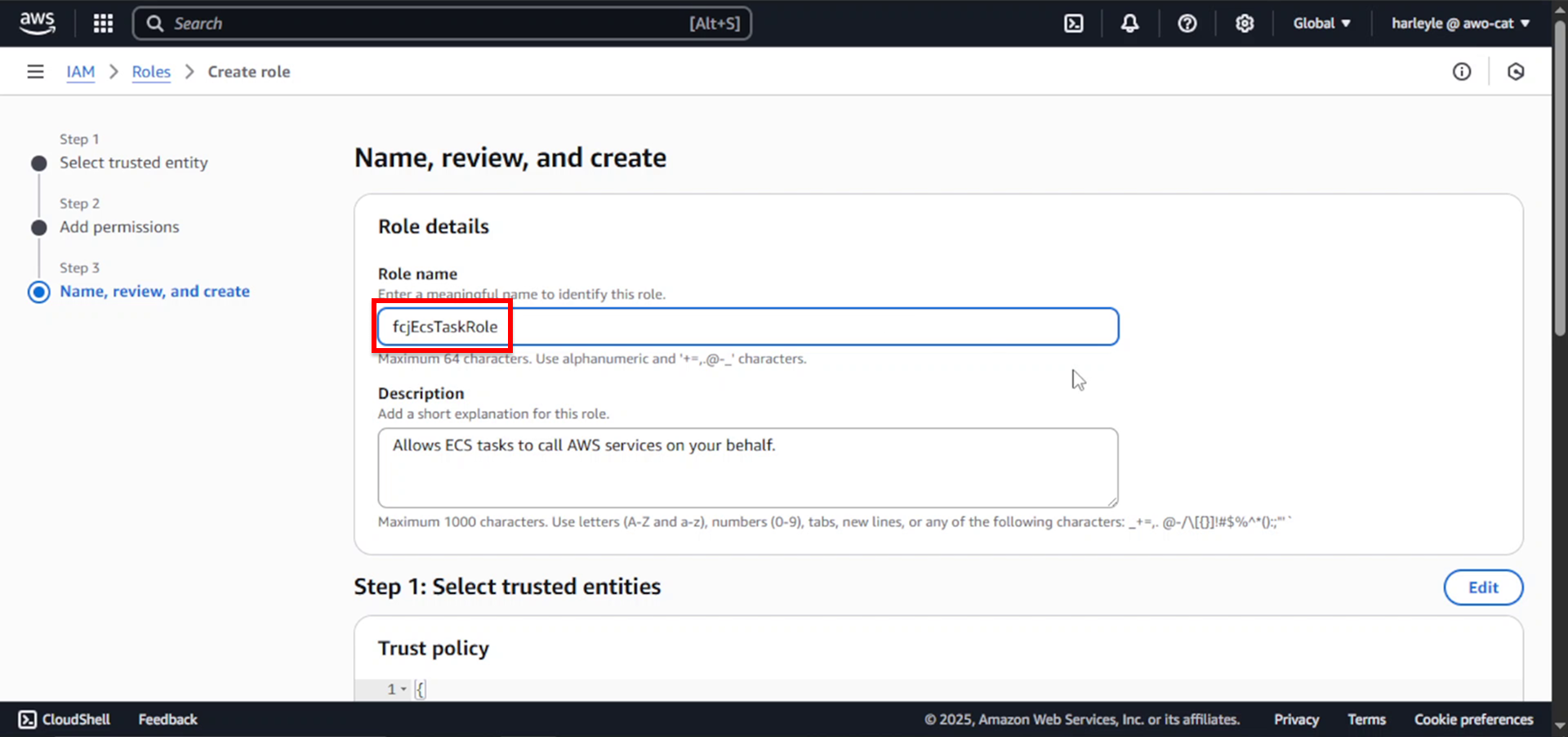
6. Configure the role details:
- Role name: Enter
fcjEcsTaskRole
7. Review the role configuration to ensure ecsExecPolicy is attached, then click Create role.
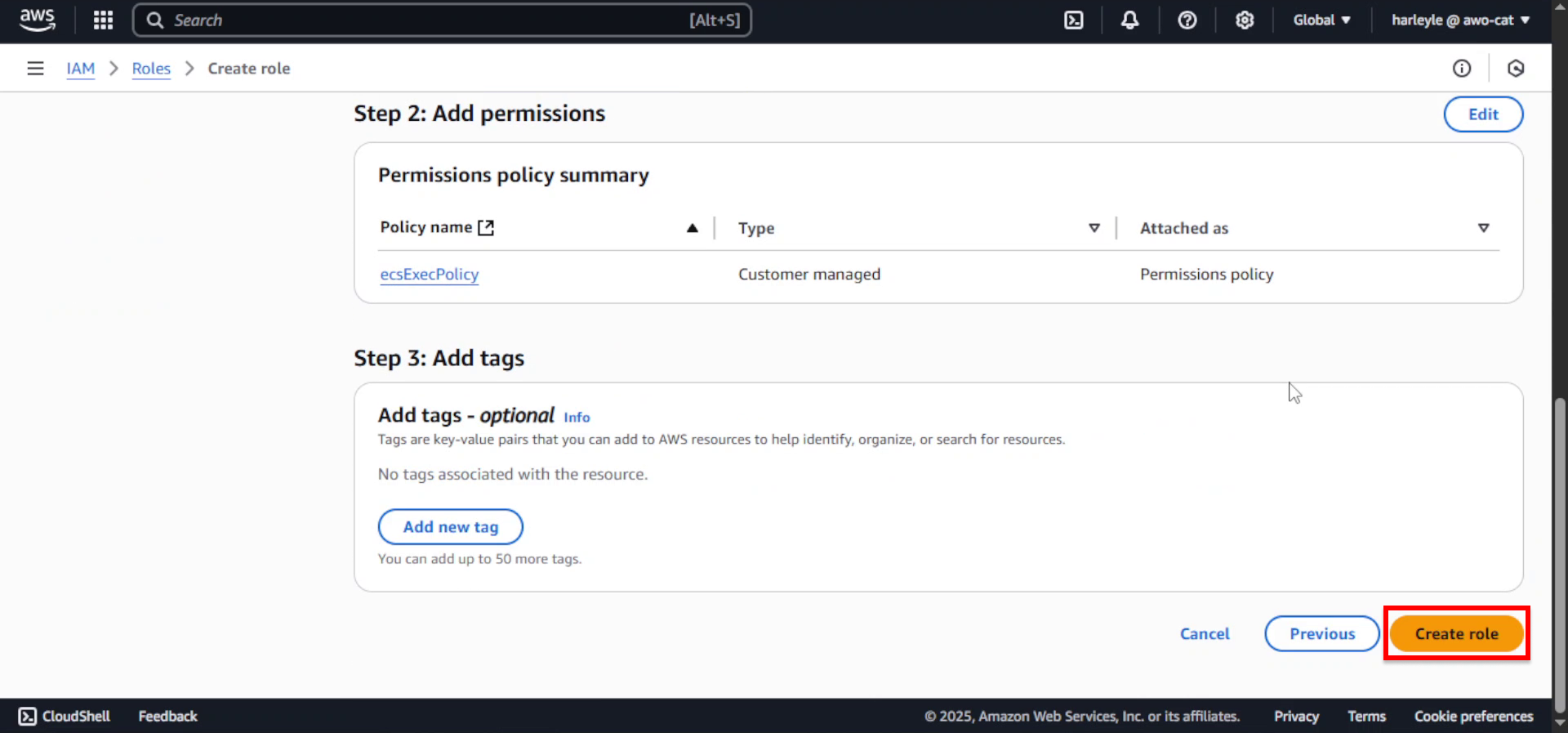
8. Verify the success message appears. The fcjEcsTaskRole is now ready for use with ECS tasks.