Pseudo parameters
Mục lục
What is Pseudo Parameter ?
Pseudo Parameter is a parameter that is predefined by AWS CloudFormation. You don’t need to declare it in your template. Use it the same as you would a parameter, as the argument for the Ref intrinsic function
In AWS, we have several pseudo parameters, such as:
-
AWS::AccountId: Returns the AWS account ID of the account in which the stack is being created, such as 123456789012.
-
AWS::Region: Returns a string representing the Region in which the encompassing resource is being created, such as us-west-2.
-
AWS::Partition: Returns the partition that the resource is in. For standard AWS Regions, the partition is aws; for the China (Beijing and Ningxia) region is aws-cn, and for the AWS GovCloud (US-West) region is aws-us-gov.
And we will use the Ref function when working with those parameters. For instance, !Ref AWS::AccountId and !Ref AWS::Region return the AccountId and the region name of the stack off of your template.
Examining the illustration
In the following example, we will create a parameter in the AWS Systems Manager Parameter Store, which is a storage of configuration data for our resources, such as database connection strings, secret key, etc. Then we build a Lambda function that reads the parameter in the store and output it when executed.
The first thing we need to do is to define a CloudFormation parameter which is used as the value of our parameter in the Parameter Store.
Parameters:
  DatabaseUsername:
    AllowedPattern: ^[a-z0-9]{5,12}$
    Type: String
    Default: alice
    Description: Value to be used with the dbUsername SSM parameter.
Next, we add a new System Manager parameter which has the type AWS::SSM::Parameter, then we pass the DatabaseUsername CloudFormation parameter to our resource.
Resources:
  BasicParameter:
    Type: AWS::SSM::Parameter
    Properties:
      Name: dbUsername
      Type: String
      Value: !Ref DatabaseUsername
      Description: SSM Parameter for database username.
For Lambda function to read the parameter, it must be assigned an IAM role with least privilege access to the parameter.
  DemoRole:
    Type: AWS::IAM::Role
    Properties:
      AssumeRolePolicyDocument:
        Version: "2012-10-17"
        Statement:
          - Effect: Allow
            Principal:
              Service:
                - lambda.amazonaws.com
            Action:
              - sts:AssumeRole
      Path: /
      Policies:
        - PolicyName: ssm-least-privilege
          PolicyDocument:
            Version: "2012-10-17"
            Statement:
              - Effect: Allow
                Action: ssm:GetParameter
                Resource: !Sub 'arn:${AWS::Partition}:ssm:${AWS::Region}:${AWS::AccountId}:parameter/${BasicParameter}'
As you can see, we attach a policy that allows our lambda function to access only the parameter with a specific ARN rather than all resources, meeting the principle of least privilege. ARN is also the place where pseudo parameters perform their tasks; in the snippet above, we combine AWS::Partition, AWS::Region, AWS::AccountId and BasicParameter to form the ARN of the parameter.
According to the AWS::SSM::Parameter documentation , if we use !Sub {BasicParameter} or !Ref BasicParameter, we will get a physical name of BasicParameter. So that the parameter ARN will be resolved as:
arn:aws:ssm:ap-southeast1:123456789012:parameter/BasicParameter-ABCNPH3XCAO6
Finally, we declare a lambda function and attach the role to it. Our function use Python to access the parameter via the boto3 library and logs the value of it.
  DemoLambdaFunction:
    Type: AWS::Lambda::Function
    Properties:
      Handler: index.lambda_handler
      Role: !GetAtt DemoRole.Arn
      Runtime: python3.8
      Code:
        ZipFile: |
          import boto3
          client = boto3.client('ssm')

          def lambda_handler(event, context):
              response = client.get_parameter(Name='dbUsername')
              print(f'SSM dbUsername parameter value: {response["Parameter"]["Value"]}')
Reinforce your understanding
1. Open Cloud9 then find ~/environment/ws2-material/workshop/fundamental/pseudo-parameters.yml.
2. Copy and paste the snippet below to add the CloudFormation parameter DatabaseUsername.
Parameters:
  DatabaseUsername:
    AllowedPattern: ^[a-z0-9]{5,12}$
    Type: String
    Default: alice
    Description: Value to be used with the dbUsername SSM parameter.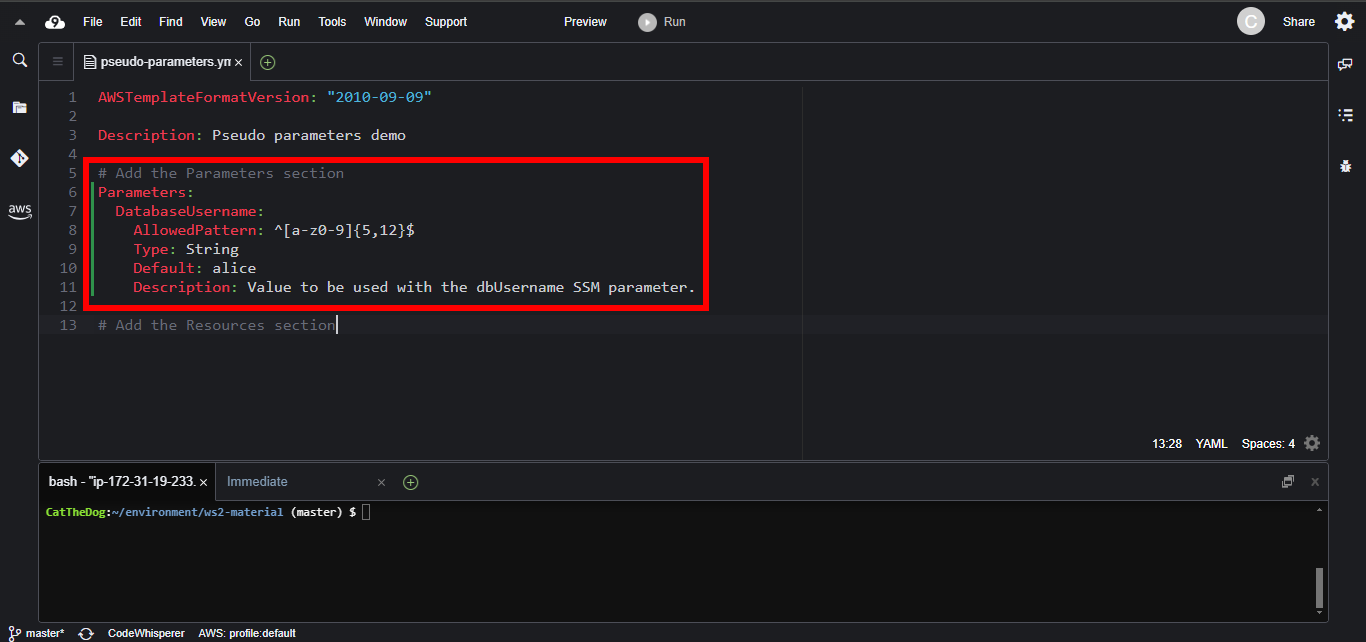
3. Add the system manager parameter BasicParameter.
Resources:
  BasicParameter:
    Type: AWS::SSM::Parameter
    Properties:
      Name: dbUsername
      Type: String
      Value: !Ref DatabaseUsername
      Description: SSM Parameter for database username.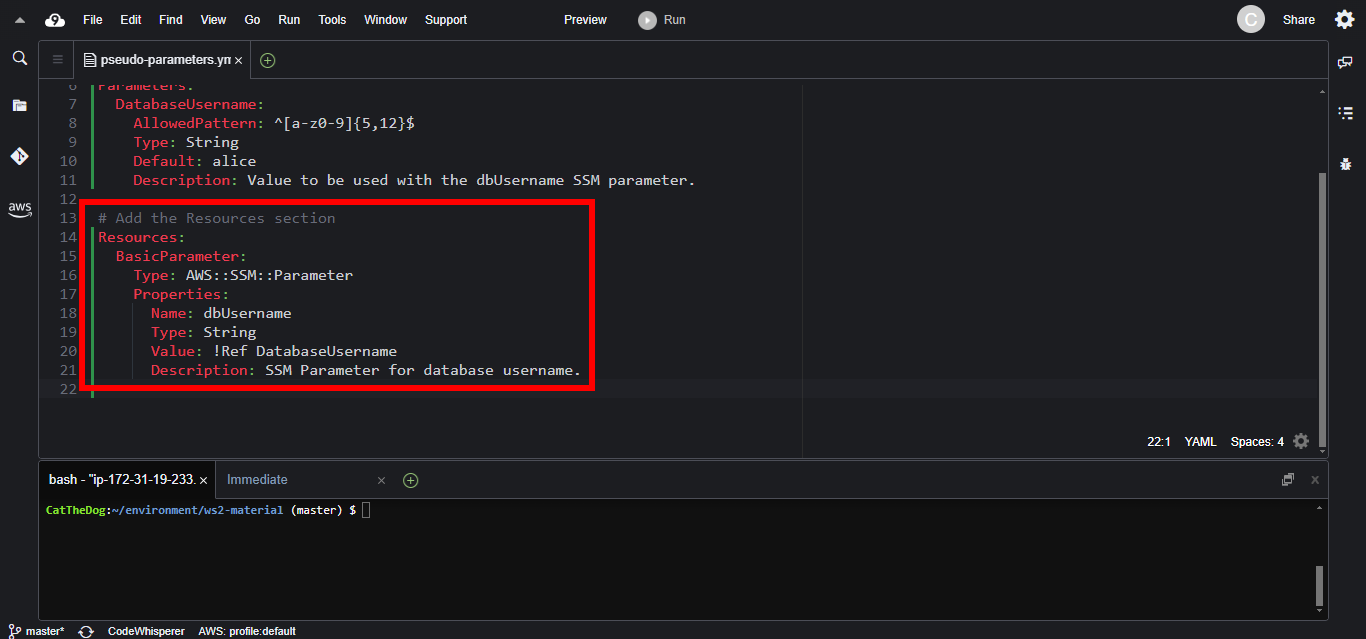
4. Add the IAM role.
  DemoRole:
    Type: AWS::IAM::Role
    Properties:
      AssumeRolePolicyDocument:
        Version: "2012-10-17"
        Statement:
          - Effect: Allow
            Principal:
              Service:
                - lambda.amazonaws.com
            Action:
              - sts:AssumeRole
      Path: /
      Policies:
        - PolicyName: ssm-least-privilege
          PolicyDocument:
            Version: "2012-10-17"
            Statement:
              - Effect: Allow
                Action: ssm:GetParameter
                Resource: !Sub 'arn:${AWS::Partition}:ssm:${AWS::Region}:${AWS::AccountId}:parameter/${BasicParameter}'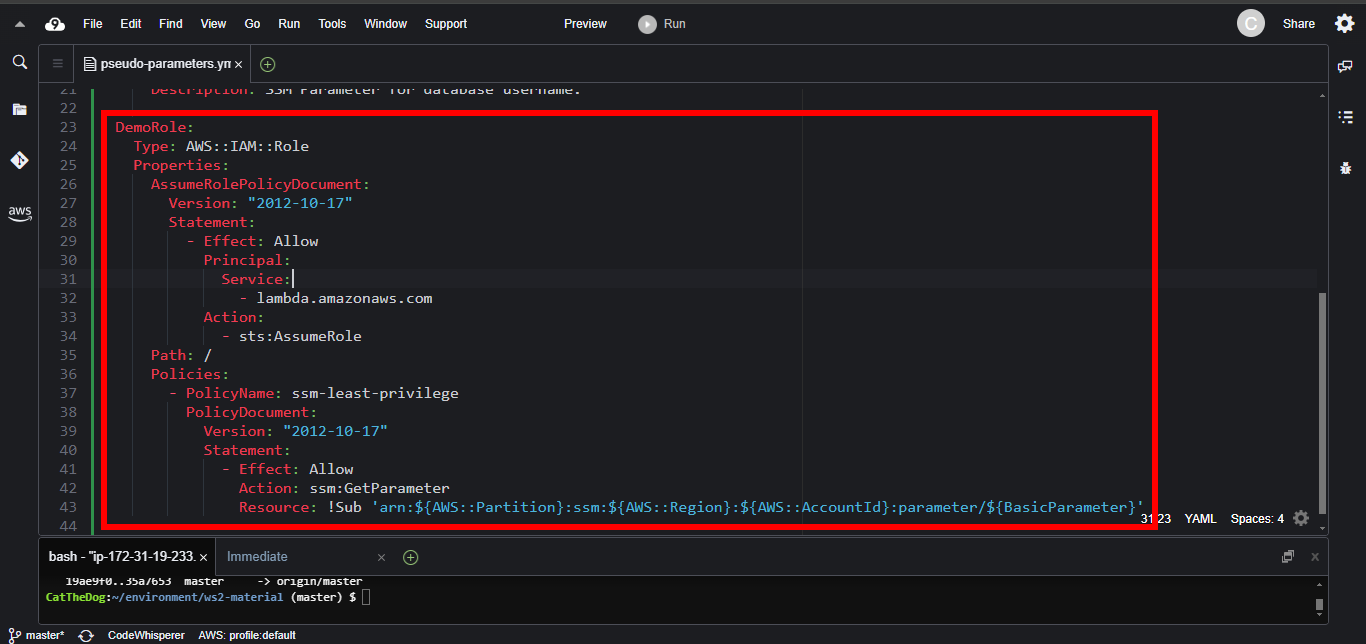
5. Add the Lambda function.
  DemoLambdaFunction:
    Type: AWS::Lambda::Function
    Properties:
      Handler: index.lambda_handler
      Role: !GetAtt DemoRole.Arn
      Runtime: python3.8
      Code:
        ZipFile: |
          import boto3
          client = boto3.client('ssm')

          def lambda_handler(event, context):
              response = client.get_parameter(Name='dbUsername')
              print(f'SSM dbUsername parameter value: {response["Parameter"]["Value"]}')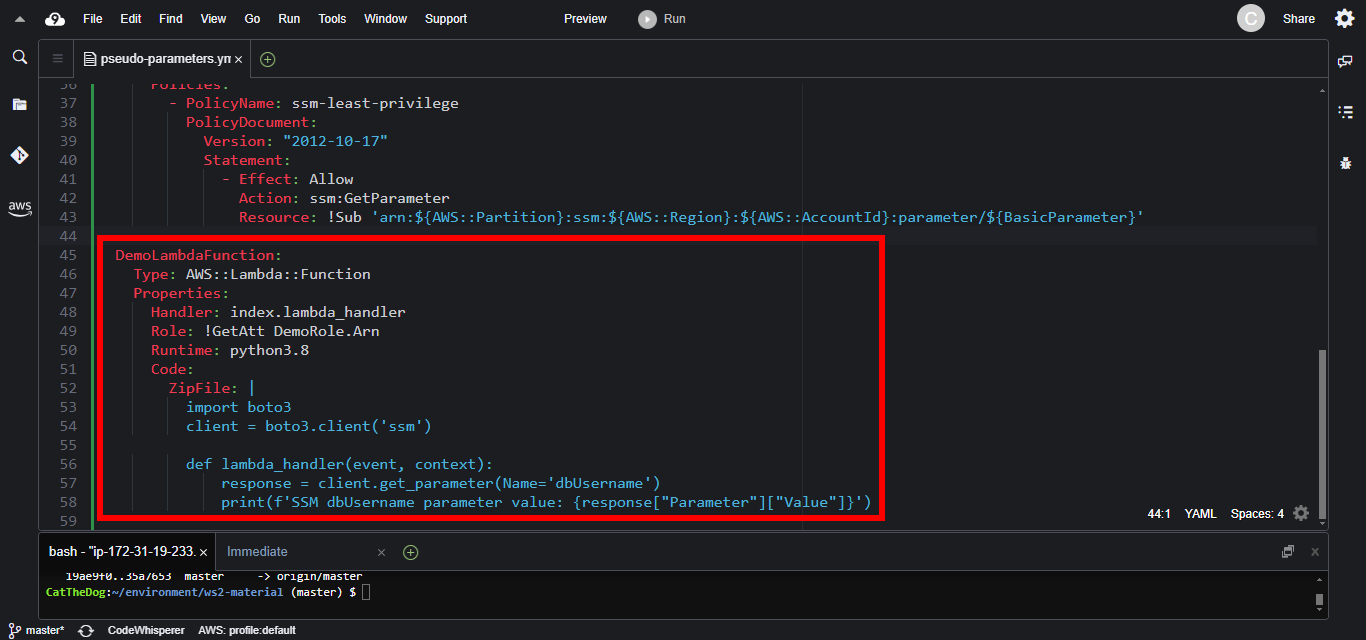
6. Run the command to create a new stack.
cd ~/environment/ws2-material/workshop/fundamental
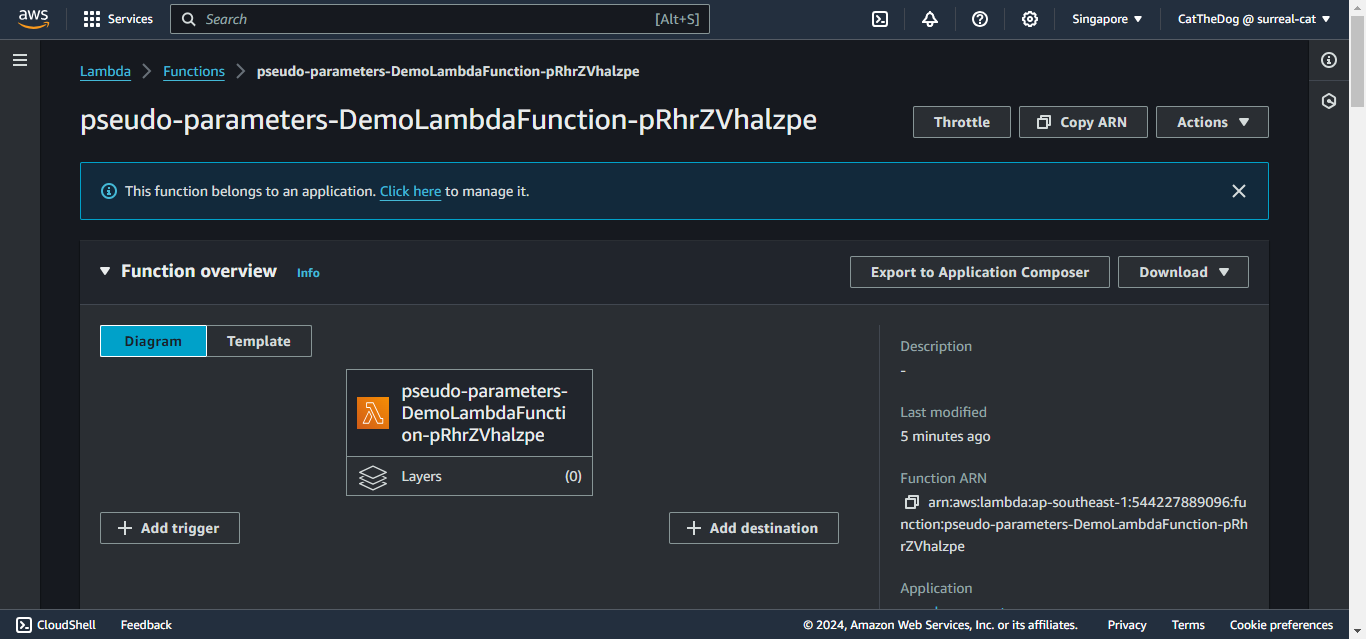
aws cloudformation create-stack --stack-name pseudo-parameters --template-body file://pseudo-parameters.yml --capabilities CAPABILITY_NAMED_IAM7. Once stack created successfully, navigate to the Lambda function.
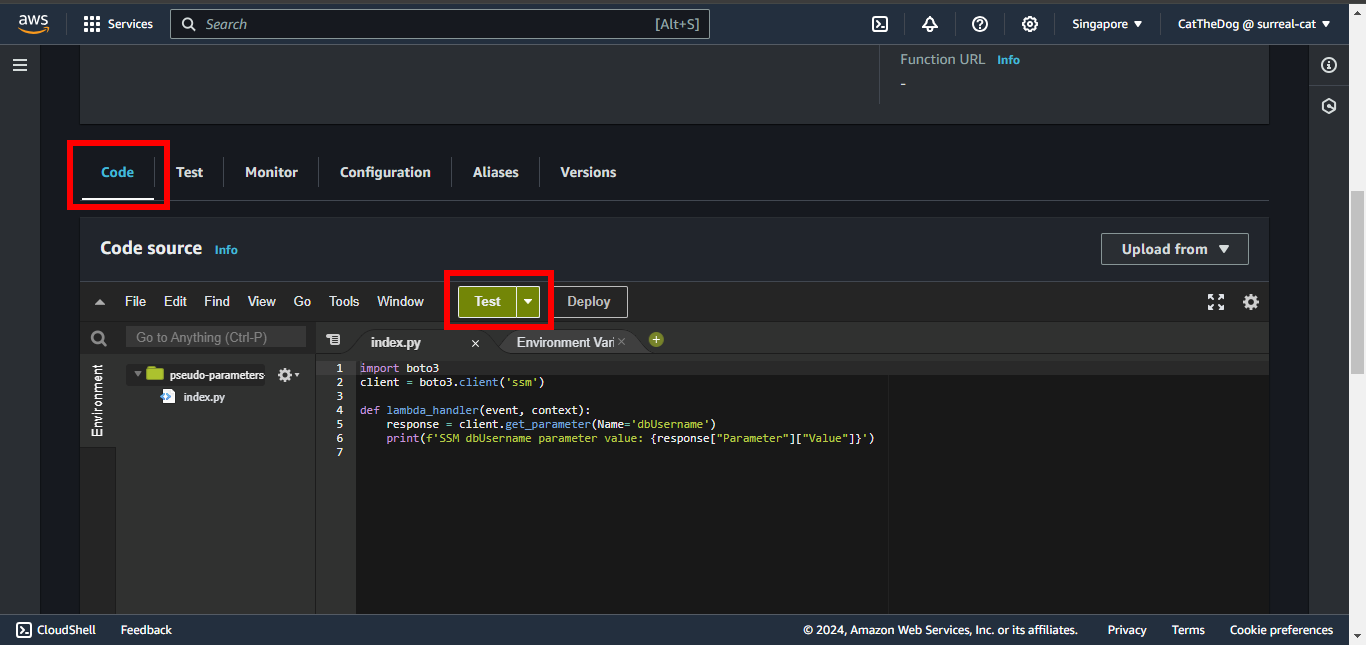
8. To trigger the function, scroll down and click on Test.
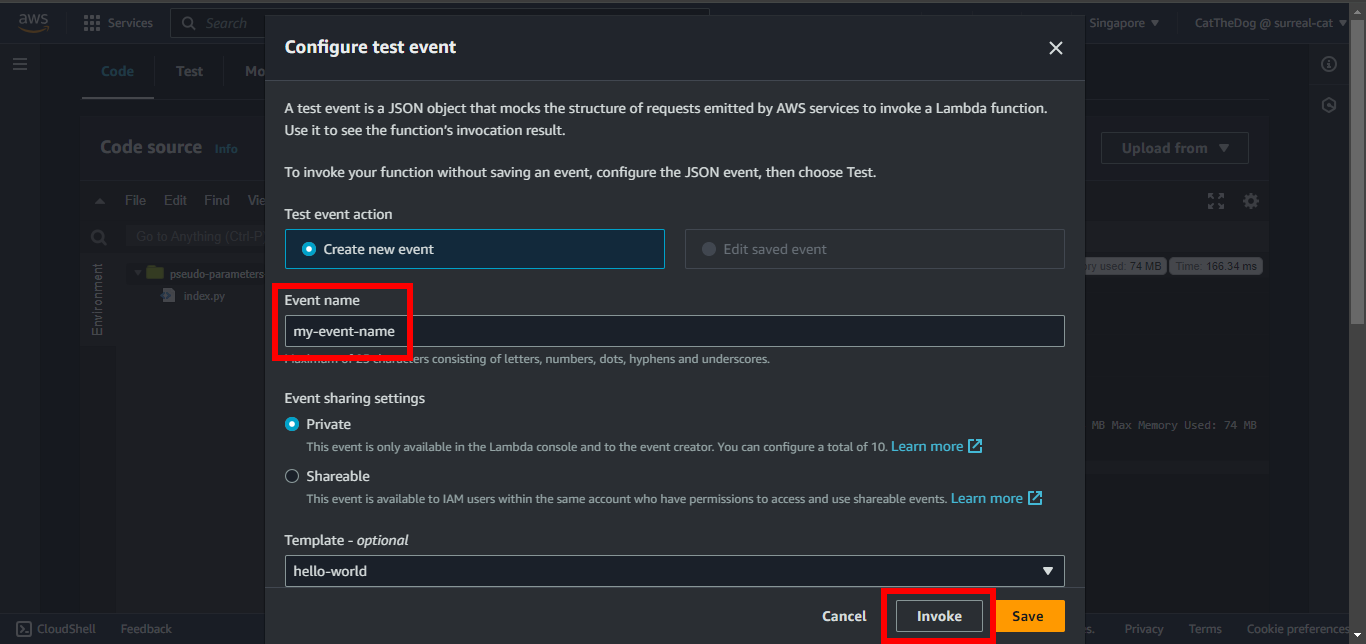
9. Enter my-event-name for Event name, then click on Invoke.
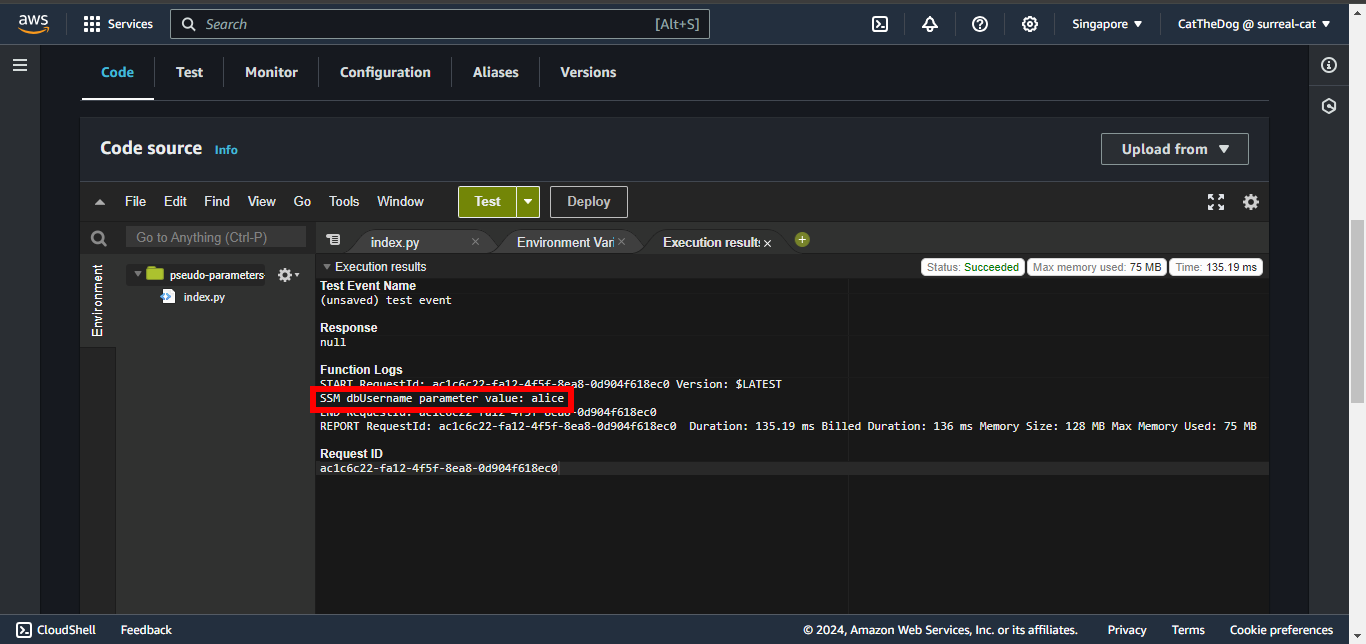
10. Validate the data logged by function.
Cleaning up
Run the delete command to delete your stack:
aws cloudformation delete-stack --stack-name pseudo-parameters